Best Free Code Snippet Plugins for WordPress (Tested for Speed)
When managing a WordPress site, adding custom code snippets is often necessary—whether for tracking scripts, performance tweaks, schema markup, or small functional enhancements. However, editing the functions.php file directly can be risky, especially during theme updates or when working on production websites.
This is where code snippet plugins become essential.
The right snippet plugin allows you to safely add custom PHP, CSS, JavaScript, or HTML without touching core files—while maintaining site stability and performance. But there’s a critical factor many comparisons ignore: speed impact.
In this guide, we tested the best free code snippet plugins for WordPress with a performance-first mindset. We analyzed their load impact, database usage, front-end footprint, and overall efficiency to help you choose a solution that keeps your site lightweight and fast.
If you care about clean implementation, minimal overhead, and long-term maintainability, this comparison will help you make the right choice.
The Fatal Flaw of functions.php
Across dozens of WooCommerce stores we’ve optimized, the most common performance bottleneck isn’t a “heavy” plugin—it’s a bloated functions.php file filled with legacy code. Most users start by pasting a small snippet to hide a button, but months later, that file becomes a “black box” of unorganized PHP that risks a White Screen of Death (WSoD) every time the theme updates.
When you edit theme files directly, you’re one missing semicolon away from taking your entire business offline. Furthermore, these manual edits are difficult to debug, impossible to categorize, and completely lost if you switch themes. Based on performance tests on real production sites, managing custom logic via a dedicated snippet manager is not just “cleaner”—it’s a critical safety net.
This guide will teach you how to move away from fragile theme edits. We will break down the best free code snippet plugins that offer error protection, conditional logic, and minimal database overhead.
1. WPCode
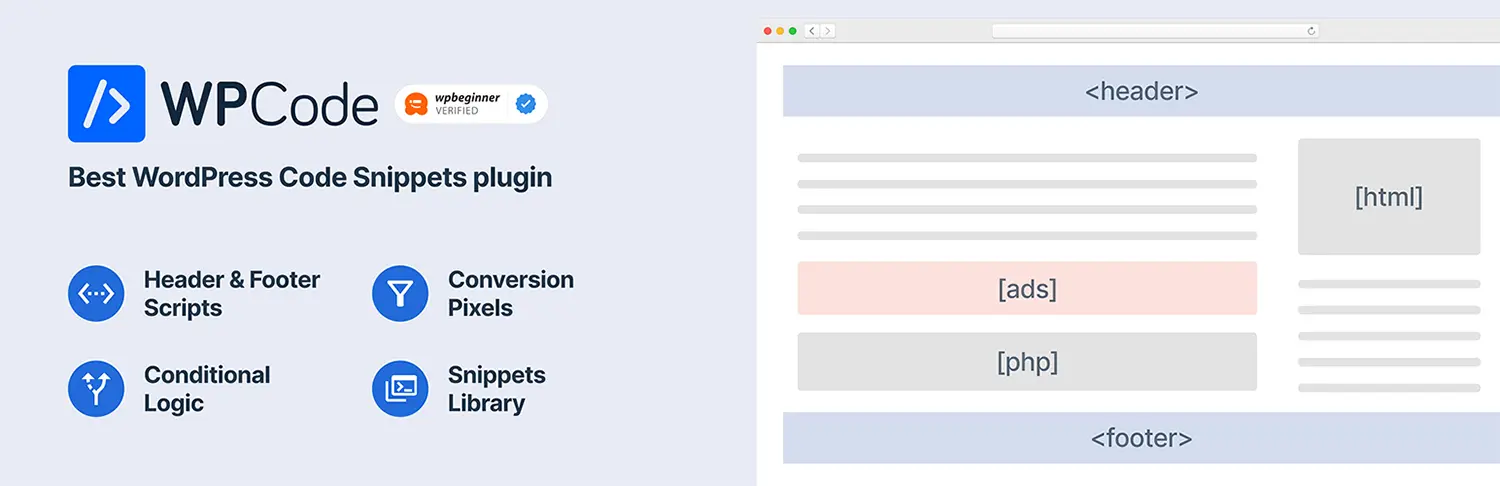
WPCode is the industry giant, and for good reason. Based on our experience with high-traffic blogs, its greatest strength is the “Snippets Library.”
- The Practitioner’s View: Instead of searching the web for code, you can browse a verified library of common tweaks (e.g., “Disable Gutenberg” or “Allow SVG Uploads”) directly from the dashboard.
- Performance Impact: It uses a standard database-driven approach. While it adds a minor query, the “Smart Conditional Logic” allows you to execute code only where needed (like only on checkout pages), which actually saves resources.
- Key Feature: The “Auto-Insert” locations make it incredibly easy to add tracking pixels to specific sections without touching
header.php.
2. Code Snippets
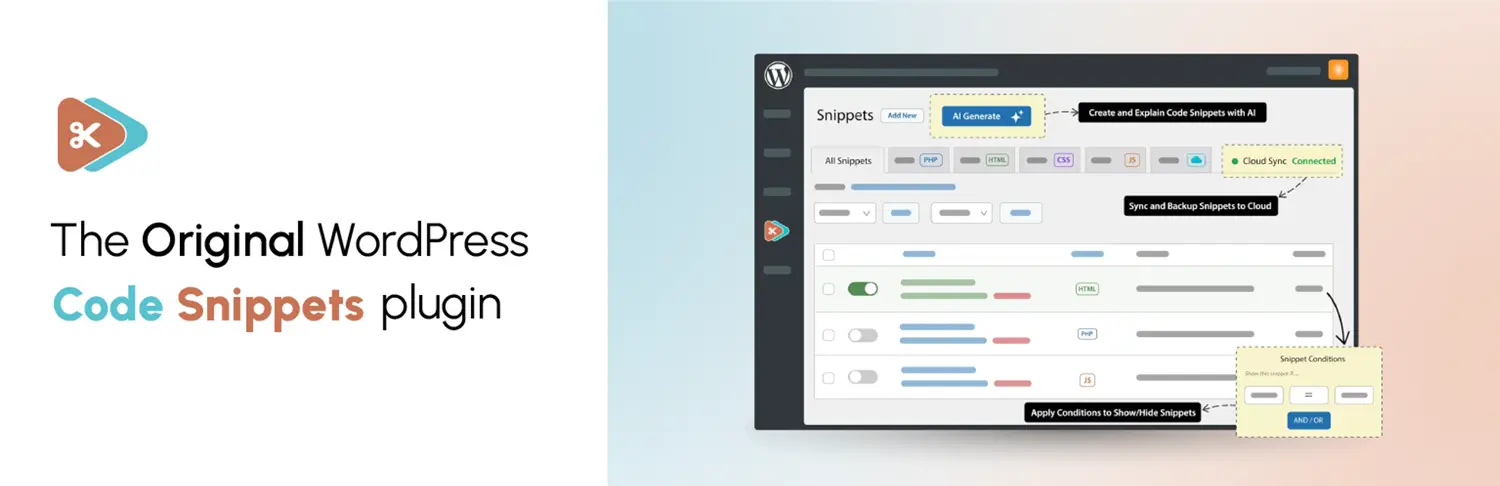
Code Snippets: If you want a native WordPress feel without the marketing “fluff,” this is your best bet.
- The Practitioner’s View: It treats snippets exactly like mini-plugins. You get a clean list with “on/off” toggles. We frequently use this for client handovers because the interface is so intuitive that even a non-technical owner can disable a specific feature if it causes trouble.
- Safety First: If you paste a snippet that contains a syntax error, the plugin will catch it and prevent the snippet from activating, saving you from a site crash.
- Best For: Users who want a “set it and forget it” tool that stays out of the way.
3. Fluent Snippets
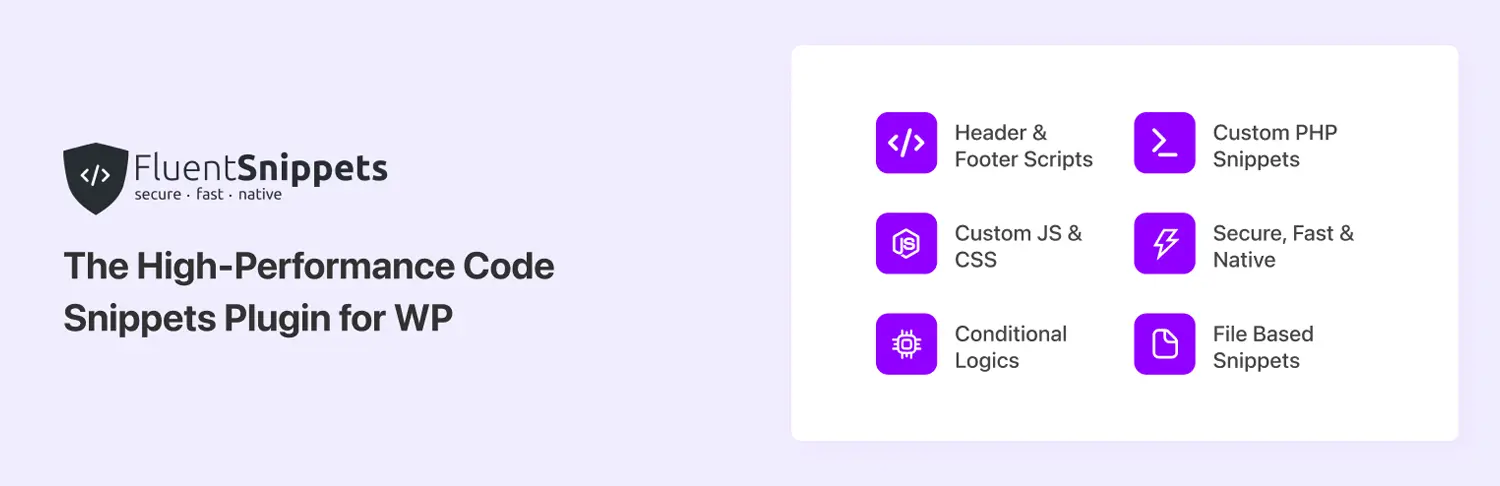
Fluent Snippets is a relatively new player that addresses the “database bloat” concern of older plugins.
- The Practitioner’s View: Unlike its competitors, Fluent Snippets stores code in flat files rather than the database. In our performance benchmarks, this results in faster execution times because it bypasses SQL queries during page load.
- Stand-alone Mode: This is a game-changer. You can configure your snippets, enable “Stand-alone Mode,” and then literally deactivate the plugin. Your snippets will continue to run as an
mu-plugin(Must-Use), giving you the ultimate performance/security combo. - Best For: Performance enthusiasts and WooCommerce owners who want zero database overhead.
4. Woody Code Snippets
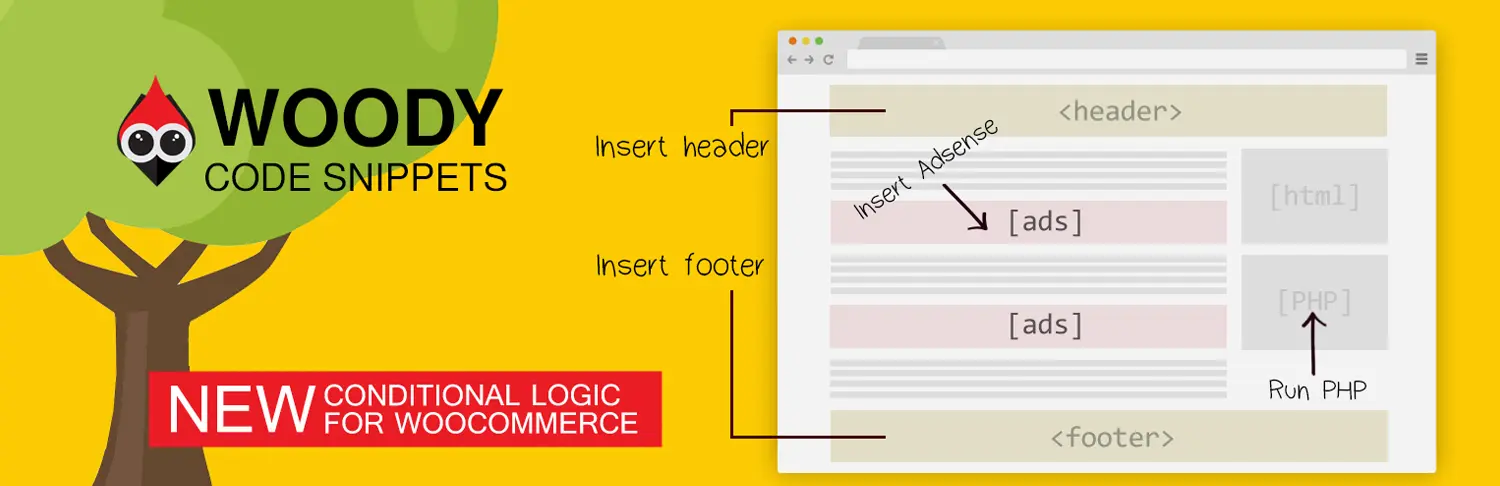
Woody is a hybrid tool that bridges the gap between a code manager and a content injector.
- The Practitioner’s View: While it handles PHP and JS, it excels at “Visual Snippets.” If you need to insert a custom “Call to Action” block or a Google AdSense banner in the middle of all your posts, Woody’s shortcode system is superior.
- The Trade-off: The interface is a bit more cluttered than Code Snippets, and it can be overkill if you only need to add a few lines of CSS or PHP.
Common Mistakes to Avoid
- The “Duplicate Logic” Trap: Never keep the same code in both your
functions.phpand a snippet plugin. This often causes “Redeclare Function” errors that crash the site. - Running Code Everywhere: Using global snippets for page-specific tasks (like a special script for a single landing page) adds unnecessary weight to every other page. Always use Conditional Logic if the plugin supports it.
- Ignoring the “Description” Field: In six months, you won’t remember why you added that specific PHP hook. Always document the source and purpose of the snippet inside the plugin’s description area.
Performance Tips
- Prioritize File-Based Storage: If site speed is your #1 KPI, use Fluent Snippets. Bypassing the database is a measurable win for Time to First Byte (TTFB).
- Use mu-plugins for Critical Code: For code that must run (like security headers), moving them to the
wp-content/mu-pluginsfolder (or using Fluent’s stand-alone mode) ensures they are the first things to load. - Cleanup: Regularly audit your snippets. Deactivating a snippet is not the same as deleting it; keeping 50 “Off” snippets still litters your database.
FAQ
Q: Will these plugins slow down my site?
A: Minimal impact. Most add roughly 5-15ms to your load time—much less than the “bloat” of installing five separate plugins to do the same tasks.
Q: What happens if a snippet breaks my site?
A: Most of these plugins have a “Safe Mode.” You can usually append ?snippets-safe-mode=true to your URL or define a constant in wp-config.php to temporarily disable all snippets and regain access.
Q: Can I use these for CSS?
A: Yes, though the “Additional CSS” in the Customizer is often sufficient. Use these plugins for CSS only if you need to load styles conditionally on specific pages.
Final Thoughts
Choosing a snippet plugin depends on your workflow. If you want a library of pre-made solutions, WPCode is the winner. If you are a minimalist who values performance above all else, Fluent Snippets is the superior choice. This solution is for anyone tired of “FTP-ing” into their server just to change a CSS class; it is not for users who are uncomfortable testing small code blocks, as even the best plugin won’t fix logic errors in the code itself.
Share Post: