How to Safely Add Custom Code Snippets in WordPress (The Beginner’s Guide)
You’re ready to take your WordPress site to the next level. Awesome!
Maybe you found a cool tutorial that promises to speed up your site, change the way your login page looks, or add entirely new functionality. But there’s a catch: it requires you to add a “code snippet.”
If the thought of pasting weird-looking PHP or JavaScript code into your website’s core files makes you sweaty, don’t worry. You are not alone. It is intimidating! One wrong character and your whole site could go blank (the dreaded “White Screen of Death”).
But here is the good news: Adding custom code to WordPress is actually very safe and easy, provided you do it the right way.
In this guide, we’re going to ditch the scary jargon and show you the friendly, professional, and—most importantly—safe ways to add code snippets to your WordPress site without breaking anything.
The “Big No-No”: Where NOT to Put Your Code
Before we jump into the “how-to,” we need to cover the most crucial rule of WordPress customization.
Never, ever paste custom code directly into your parent theme’s functions.php file.
It’s tempting. It’s right there in your dashboard under Appearance > Theme File Editor. Why not just paste it in?
Here is why that’s a terrible idea:
- The Update Wipeout: The moment your theme developer releases an update (for security or new features) and you click “Update,” poof! All your custom code is overwritten and lost forever.
- The Breaking Point: If you make a tiny syntax error in that file, your entire site will crash instantly, and you won’t be able to access your dashboard to fix it. You’ll have to log in via FTP to undo the damage.
So, if we can’t use the main theme files, where does the code go? Let’s look at the three best solutions, starting with the easiest.
Method 1: Using a Code Snippet Plugin (The Easiest & Safest Way)
If you are a beginner, or even an experienced user who just wants efficiency, this is the method you should use.
Using a dedicated plugin is like having a safe, separate container for your custom code. It runs independent of your theme.
Why it’s awesome:
- Theme Independent: You can change your theme tomorrow, and your code snippets will still work.
- Safety Net: If you add bad code that would normally crash your site, these plugins usually detect the error and deactivate just that specific snippet, keeping your site live.
- Organization: You can name your snippets, categorize them, and turn them on/off individually just like mini-plugins.
We highly recommend the free plugin simply called Code Snippets. It’s the gold standard with millions of users.
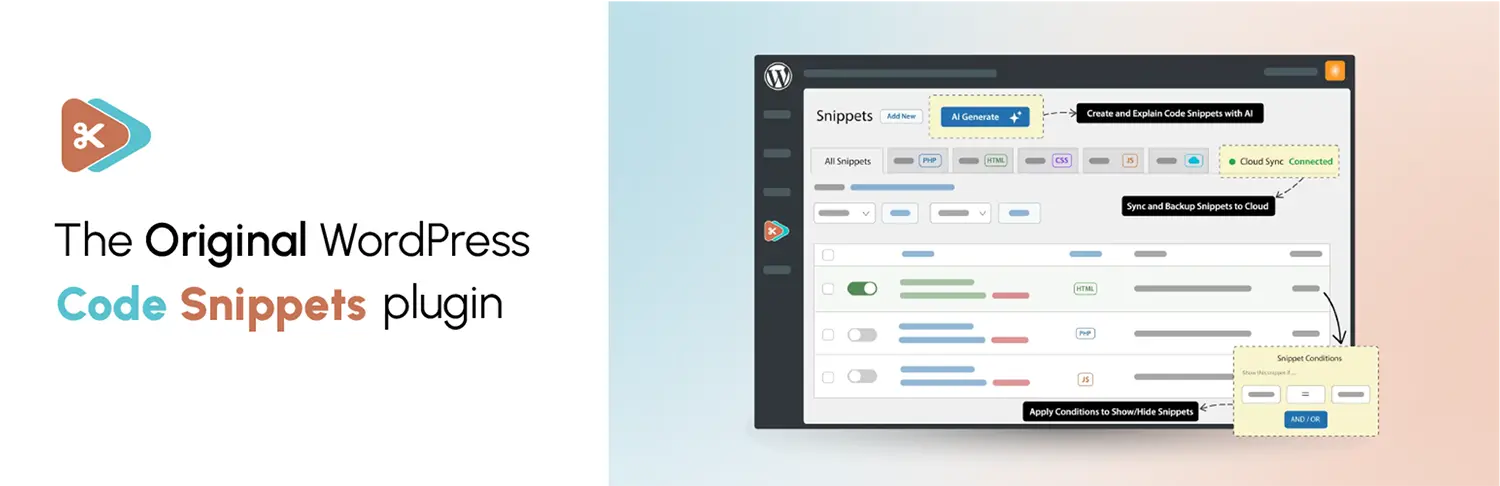
How to do it:
- Go to your WordPress Dashboard, navigate to Plugins > Add New.
- Search for “Code Snippets”.
- Install and Activate the plugin (it has a blue scissors icon).
Once activated, you’ll see a new menu item called Snippets.
- Click Snippets > Add New.
- Give your snippet a title (e.g., “Disable Admin Bar for Non-Admins”).
- Paste your code into the code box.
- Crucial Step: Below the editor, choose where to run the code. Usually, “Run snippet everywhere” is fine, but sometimes you only need it on the front-end or administration area.
- Click the blue Save Changes and Activate button.
That’s it! Your custom code is now running safely on your site.
Method 2: Using a Child Theme (The Designer’s Choice)
If you are already using a child theme to customize the design (CSS) of your site, it makes sense to put your functional code snippets there too.
A child theme inherits everything from your main (“parent”) theme, but changes you make to the child theme don’t get overwritten when the parent theme updates.
Note: If you don’t have a child theme yet, you’ll need to create one first. You can use a plugin like “Child Theme Configurator” to easily generate one.
How to do it:
- Ensure your child theme is active via Appearance > Themes.
- You need to access your site’s files. You can do this via FTP (like FileZilla) or your hosting file manager (cPanel).
- Navigate to
/wp-content/themes/your-child-theme-folder/. - Look for a file named
functions.php. If it doesn’t exist, create a new plain text file, name itfunctions.php, and add<?phpat the very top line. - Paste your code snippet into this file, below the opening
<?phptag. - Save and upload the file.
Warning: Unlike Method 1, there is no safety net here. If you miss a semicolon or a bracket in your code, your site will crash. Always have FTP access ready to undo changes if needed.
Method 3: Creating Your Own Site-Specific Plugin (The Developer Way)
This sounds complicated, but it’s actually surprisingly simple. It’s similar to Method 1, but instead of using someone else’s plugin to manage the code, you are creating your very own ultra-lightweight plugin.
This is fantastic because your functionality is totally portable. Moving to a new host? Just copy your little plugin file over.
How to do it:
- Open a plain text editor on your computer (like Notepad on Windows or TextEdit on Mac—ensure it’s in “plain text” mode).
- At the very top of the file, paste the following standard WordPress plugin header comment block:
PHP
<?php
/*
Plugin Name: My Custom Site Tweaks
Description: Custom code snippets for my website.
Version: 1.0
Author: Your Name
*/

/* Add your custom code snippets directly below this line */
- Paste your custom code snippets underneath that header block.
- Save the file as a
.phpfile. For example:my-custom-tweaks.php. - Connect to your site via FTP.
- Upload this file to the
/wp-content/plugins/folder. - Go back to your WordPress dashboard, navigate to Plugins, and you will see “My Custom Site Tweaks” listed there.
- Click Activate.
Which Method Should You Choose?
Let’s recap to help you decide.
- For 95% of users (Beginners & Pros alike): Use Method 1 (Code Snippets Plugin). It’s the safest, easiest to manage, and prevents site-breaking errors.
- If you are heavily customizing your theme’s design already: Use Method 2 (Child Theme) to keep your design and functional changes together.
- If you are a developer or want ultimate portability: Use Method 3 (Site-Specific Plugin).
Adding custom code is how you unlock the true power of WordPress. Now that you know the safe ways to do it, go ahead and tweak your site without fear!
Share Post: