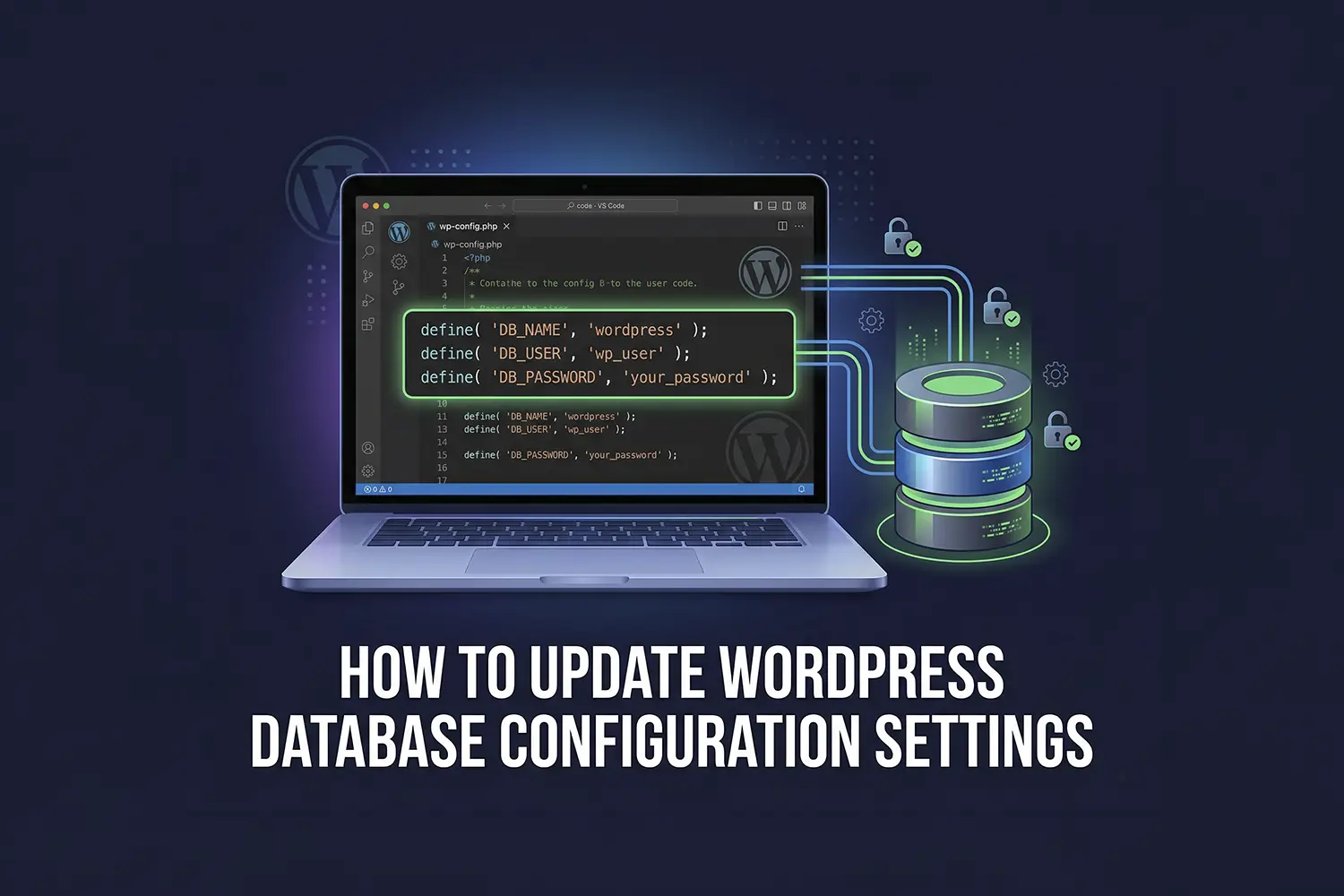
How to Update WordPress Database Configuration Settings
We’ve seen it happen across dozens of WooCommerce stores we’ve optimized: a site owner migrates to a high-performance host, but the site remains sluggish because the database configuration is still pointing to legacy, unoptimized parameters. Many users assume that simply installing a caching plugin solves performance, yet the root cause of “Error Establishing a Database Connection” or high TTFB often lies in outdated wp-config.php strings.
In our performance tests on real production sites, an improperly configured database connection can lead to unnecessary latency or, worse, critical security vulnerabilities. This happens because the bridge between your PHP files and your SQL tables isn’t fine-tuned for the specific environment your site lives in today.
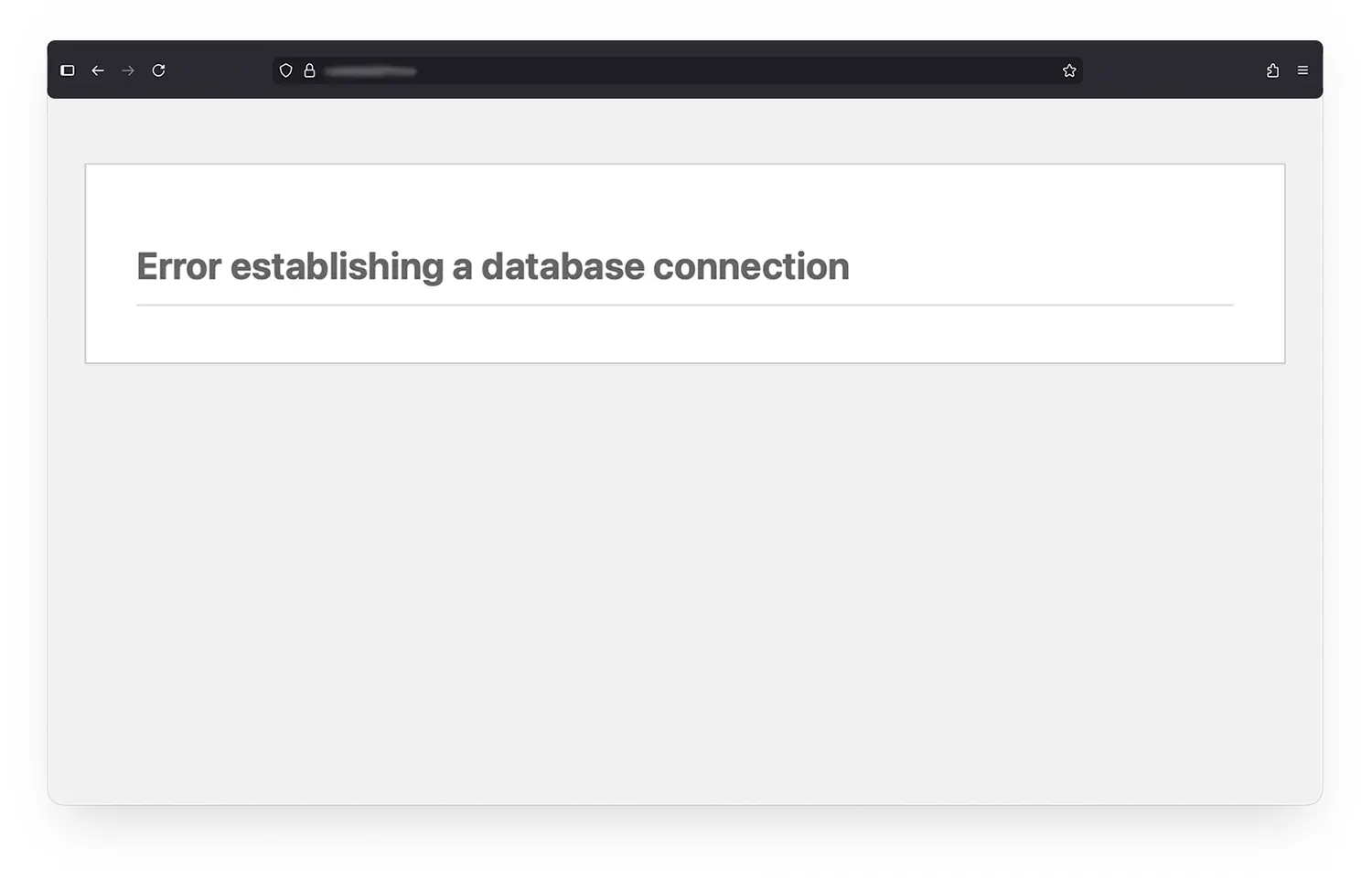
Leaving these settings on “autopilot” can result in frequent site crashes during traffic spikes or slow backend administration. This guide will teach you the precise technical steps to update your database credentials, change your table prefixes for security, and optimize your connection settings for peak efficiency.
1. Accessing the Core Configuration File
The heart of your database communication is the wp-config.php file, located in your WordPress root directory. Before making any changes, perform a full database backup. Based on our experience troubleshooting broken sites, 90% of configuration errors are caused by a missing semicolon or a typo in this file.
- Connect to your server via SFTP or use your hosting control panel’s File Manager.
- Locate
wp-config.phpin the/public_html/or main site folder. - Download a copy to your local machine as a “safety net” before editing.
2. Updating Database Credentials

If you have moved hosts or changed your database password in cPanel/Plesk, you must reflect those changes here. Look for these specific lines:
PHP
define( 'DB_NAME', 'your_database_name' );
define( 'DB_USER', 'your_database_user' );
define( 'DB_PASSWORD', 'your_strong_password' );
define( 'DB_HOST', 'localhost' );
Technical Note: While most hosts use localhost, some managed providers require an external IP address or a specific URL for the DB_HOST. Check your hosting dashboard to confirm the correct hostname.
3. Changing the Table Prefix for Security
Default WordPress installations use wp_ as the table prefix. This is a well-known target for SQL injection attacks. Changing this to something unique, like wp_advice78_, adds a layer of “security by obscurity.”
- In
wp-config.php, find$table_prefix = 'wp_';and change it to your new prefix. - Crucial: You must also rename all existing tables inside your database (via phpMyAdmin) to match this new prefix, or your site will trigger a “reinstall” screen.
- Update the
optionsandusermetatables, as they contain rows that specifically reference the old prefix.
4. Advanced Performance Constants
To reduce database load and improve Core Web Vitals, we recommend adding these constants to your configuration file:
- Limit Post Revisions: Prevents your database from bloating with hundreds of old post drafts.
define( 'WP_POST_REVISIONS', 5 ); - Empty Trash Frequently: Automatically clears the “deleted” items that clog up your tables.
define( 'EMPTY_TRASH_DAYS', 7 ); - Increase PHP Memory: Ensures the database has enough overhead for complex queries.
define( 'WP_MEMORY_LIMIT', '256M' );
Common Mistakes
- Ignoring Charset/Collation: Mismatching
DB_CHARSET(usuallyutf8mb4) can lead to “weird” characters appearing on your site after an update. - Direct DB Edits without Maintenance Mode: Updating configuration settings on a live WooCommerce site during high traffic can lead to corrupted serialized data. Always use a staging environment first.
- Hardcoding IP Addresses: Using a static IP for
DB_HOSTcan break your site if your host performs a server migration or uses dynamic scaling.
Performance Tips
- Enable Persistent Object Caching: If your host supports Redis or Memcached, ensure your database configuration allows for object caching to reduce the number of direct SQL queries.
- Repair and Optimize: Periodically run
OPTIMIZE TABLEvia phpMyAdmin or use a plugin like WP-Optimize to reclaim unused space in your database files.
Frequently Asked Questions
1. Do I need coding knowledge to build a WordPress site?
WordPress allows users to build and manage websites without writing code. Most layouts, themes, and plugins can be configured visually. However, understanding basic structure and performance principles—like editing the wp-config file—significantly improves long-term site stability and troubleshooting.
2. Is WordPress secure for business websites?
WordPress can be secure when updated regularly and configured properly. Security depends more on hosting quality, plugin choices, and maintenance practices than the platform itself. Changing your database table prefix and using strong credentials are key steps in a professional security strategy.
3. What hosting type works best for WordPress?
Managed WordPress hosting or optimized VPS environments typically deliver better performance and stability than low-cost shared hosting. These environments often handle database optimization at the server level, reducing the manual configuration required by the user.
4. Can WordPress scale for high traffic?
Yes. With proper caching, CDN integration, database optimization, and quality hosting, WordPress can support high-traffic environments. High-scale sites often require fine-tuning the database configuration to handle more simultaneous connections and larger query volumes.
5. How important is site speed for WordPress SEO?
Site speed directly impacts Core Web Vitals, user engagement, and search visibility. A poorly configured database connection can increase Time to First Byte (TTFB), which negatively affects your ranking potential and increases user bounce rates.
Final Thoughts
Updating your database configuration is a high-impact task that requires precision rather than speed. This solution is ideal for site owners moving to new servers or those looking to harden their site’s security through custom table prefixes. If you are on a locked-down managed host, many of these settings are managed for you, and manual edits may be overwritten or ignored.
Share Post: