What is the WordPress Dashboard? A Practitioner’s Guide
Most new site owners make the mistake of treating the WordPress dashboard as a digital dumping ground, installing dozens of plugins that clutter the interface with aggressive “admin notices” and upsells. Based on performance tests on real production sites, an unoptimized dashboard isn’t just a visual nuisance; it triggers unnecessary background PHP processes that can significantly lag your administrative workflow. When you log in, you aren’t just looking at a menu; you are interacting with a management engine that requires regular tuning to remain efficient.
Across dozens of sites we’ve optimized, we’ve observed that a “heavy” dashboard often correlates with poor database health and slow backend response times. This friction often leads to site owners neglecting updates or making configuration errors simply because the interface is too overwhelming to navigate. Understanding the technical hierarchy of the admin area is the first step toward maintaining a lean, professional web presence.
In this guide, you will learn the functional purpose of every core menu item, how to strip away the “marketing fluff” added by themes and plugins, and how to configure your workspace for maximum productivity and site stability.
1. The Admin Toolbar and Quick Access
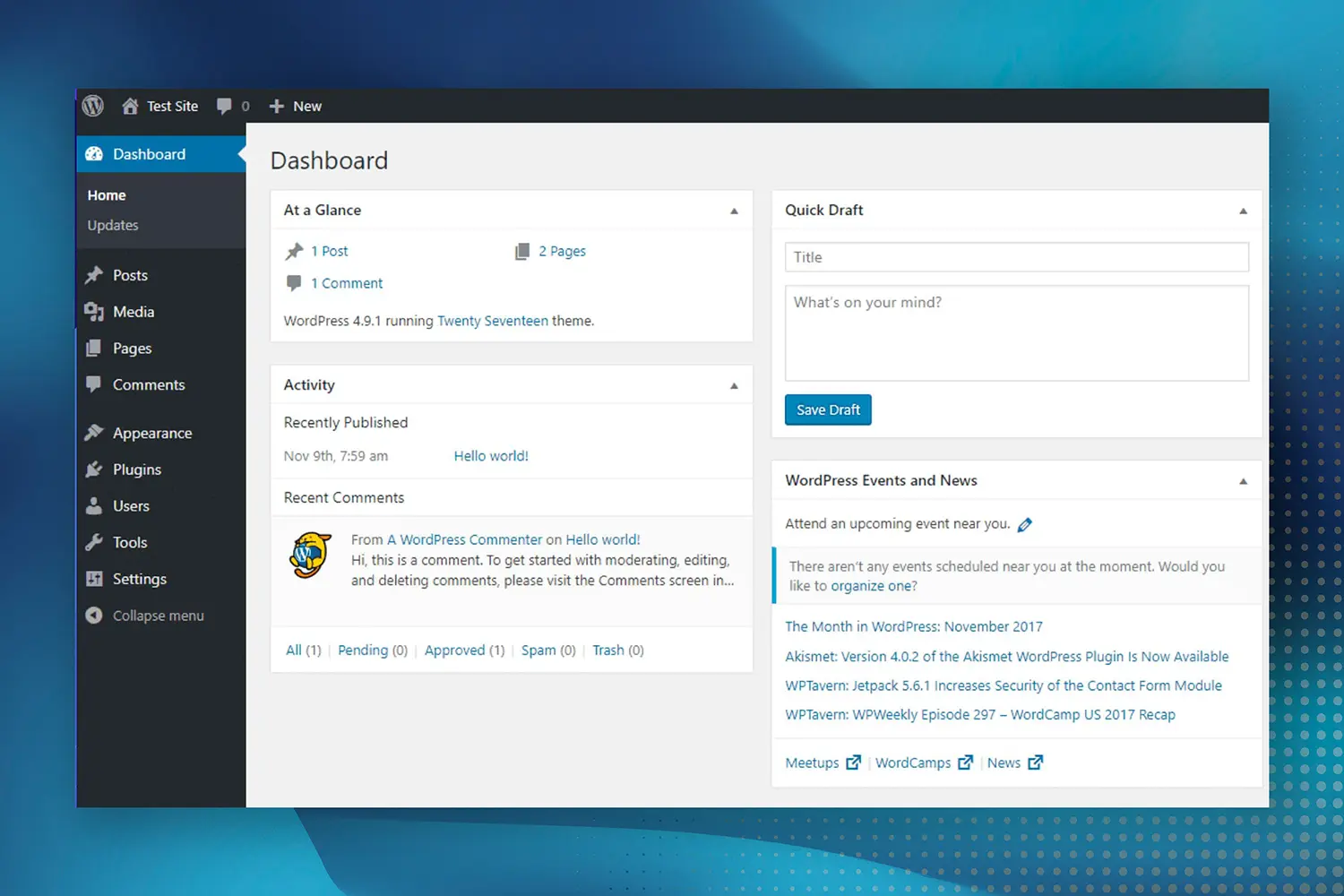
The dark horizontal bar at the top of your screen is the Admin Toolbar. While it provides quick links to “New Post” or “Comments,” it is also a common site for performance-draining plugin integrations.
Screen Options (The Hidden Cleanup Tool)
In the top right corner, you will find the “Screen Options” tab. We recommend unchecking every box you don’t use daily, such as “WordPress Events” or “Quick Draft.” Minimizing these reduces the number of database queries required every time the dashboard home page loads.
2. Core Navigation: Content and Structure
The left-hand sidebar is your primary control center. It is divided into three logical sections: Content, Media, and Configuration.
Posts vs. Pages
- Posts: Used for chronological content like blogs or news. These utilize categories and tags, which create “Taxonomy” archives in your database.
- Pages: Used for static, hierarchical content like “About Us” or “Contact.” Pages do not use tags and are better for your site’s permanent structure.
Media Library
This is where your images and files live. Technical Note: Many beginners upload raw smartphone photos here. Across our performance audits, failing to compress images before they hit the Media Library is the #1 cause of bloated backups and slow LCP (Largest Contentful Paint) scores.
3. Configuration: The “Engine Room”
The Settings menu is where the technical health of your site is determined.
- Reading Settings: This is where you can “Discourage search engines from indexing this site.” We frequently see developers forget to uncheck this after a site goes live, resulting in a total loss of SEO visibility.
- Permalinks: For optimal SEO and user experience, ensure this is set to “Post name.” Avoid using “Plain” or “Numeric” structures, as they provide no semantic value to Google.
Common Mistakes & Performance Tips
Common Mistakes
- Ignoring Admin Notifications: Letting plugin “sale” banners stack up can slow down the admin-ajax.php calls, making the backend feel sluggish.
- Leaving Unused Themes/Plugins: Even inactive themes take up disk space and can pose security risks. Always delete what you aren’t using.
- Direct File Editing: Never use the “Theme File Editor” in the dashboard. One syntax error can “White Screen” your site. Use FTP or a staging environment instead.
Performance Tips
- Limit Post Revisions: By default, WordPress saves every draft edit. Use a line in your
wp-config.phpto limit these to 3 or 5 to prevent database bloat. - Disable the Welcome Panel: Use the Screen Options to hide the “Welcome to WordPress” section; it’s a small but effective way to clean up the initial load.
- Monitor Site Health: Use the “Tools > Site Health” menu weekly. It highlights critical security issues and outdated PHP versions that directly impact speed.
Frequently Asked Questions
1. Do I need coding knowledge to build a WordPress site?
WordPress allows users to build and manage websites without writing code. Most layouts, themes, and plugins can be configured visually. However, understanding basic structure and performance principles significantly improves long-term site stability and allows for better troubleshooting when issues arise.
2. How long does it take to learn WordPress professionally?
Basic setup can be learned within weeks. Professional-level performance optimization, SEO configuration, and WooCommerce integration require structured practice and real-world implementation. The learning curve is gentle for users but deep for those seeking high-performance results.
3. Is WordPress secure for business websites?
WordPress can be secure when updated regularly and configured properly. Security depends more on hosting quality, plugin choices, and maintenance practices than the platform itself. Using strong passwords and two-factor authentication (2FA) is essential for any professional business site.
4. What hosting type works best for WordPress?
Managed WordPress hosting or optimized VPS environments typically deliver better performance and stability than low-cost shared hosting. These environments are specifically tuned for WordPress-specific PHP requirements and often include server-side caching that improves load times significantly.
5. Can WordPress scale for high traffic?
Yes. With proper caching, CDN integration, database optimization, and quality hosting, WordPress can support high-traffic environments. Many of the world’s largest news organizations and enterprises use WordPress as their primary CMS because of its inherent scalability.
6. How important is site speed for WordPress SEO?
Site speed directly impacts Core Web Vitals, user engagement, and search visibility. Poor performance increases bounce rate and reduces conversion potential. Google uses speed as a ranking factor, making it a non-negotiable aspect of modern technical SEO.
Final Thoughts
The WordPress Dashboard is a powerful tool, but its efficiency depends entirely on your management habits. Keeping a clean, updated, and lean admin area ensures that your site remains fast for both you and your visitors. This guide is for those who value stability over “shiny” features; it is not for those looking for a “set it and forget it” solution without basic maintenance.
Share Post: